As part of the Post Tickets process, Dispatch 3.2 can create a file that can be imported into Sage 50.
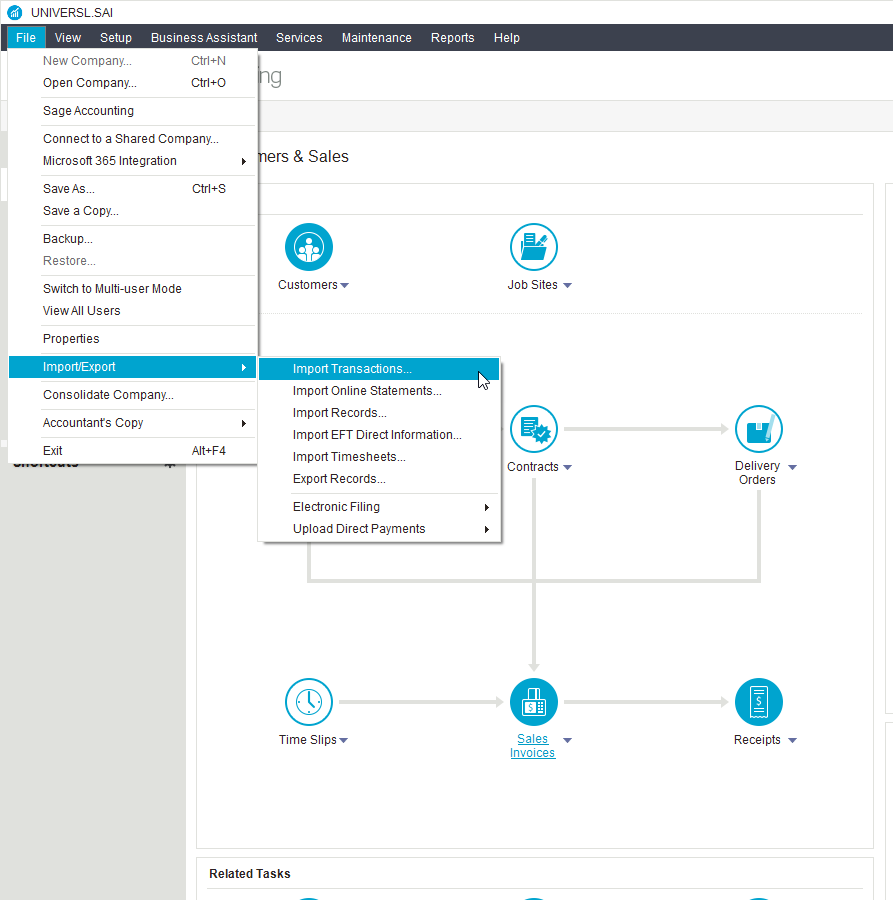
To start the Import Transactions Wizard, open Sage and click File > Import/Export > Import Transactions.
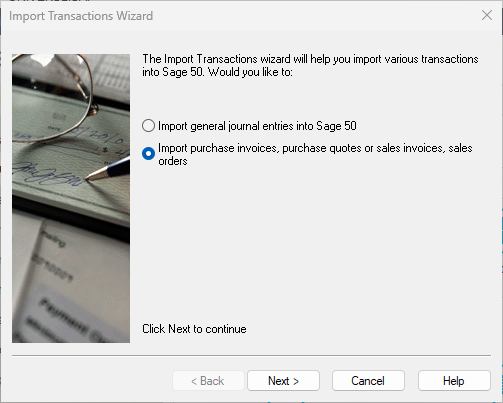
Choose Import purchase invoices, purchase quotes or sales invoices, sales orders and click Next.
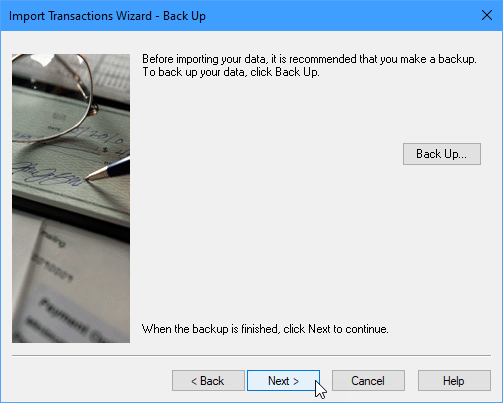
Sage will prompt you to make a back up. If you are ensure, Sage does recommend it but ultimately it is your choice.
Click Next again to continue.
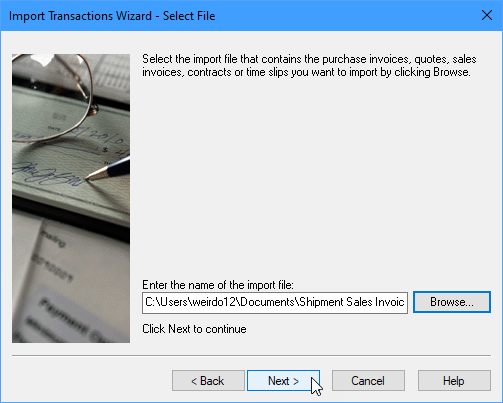
Now click the Browse button to locate the import file that was created by Post Tickets Wizard.
Unless you specified a location, the import file will have been created in your Documents folder. For example:
Shipment Sales Invoice 19 to 22.imp
Sage now reads the import file looking for Customer and Item codes in the import file that do not already exist within Sage.
If it can't find a Customer, you will have the option to have Sage automatically add the Customer.
When Sage can't find an Material/Item, you will be asked to select a match to an existing Item. It will do this repeatedly for every single line of every invoice you have imported. It is extremely tedious.
At this point we recommend that you click Cancel and add the appropriate Material/Item codes to Sage. When that has been done, restart the Import Transactions Wizard.
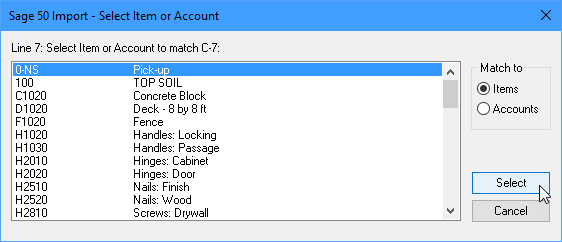
If Sage finds that all the Material/Item codes are valid, it then tries to match the Material/Item data in the import file to those used by your Customers when they give you a Purchase Order.
If it can't find a match, it will ask you to specify a match using the Select Item or Account dialog (see above). It will do this repeatedly for every single line of every invoice you have imported. It is extremely tedious.
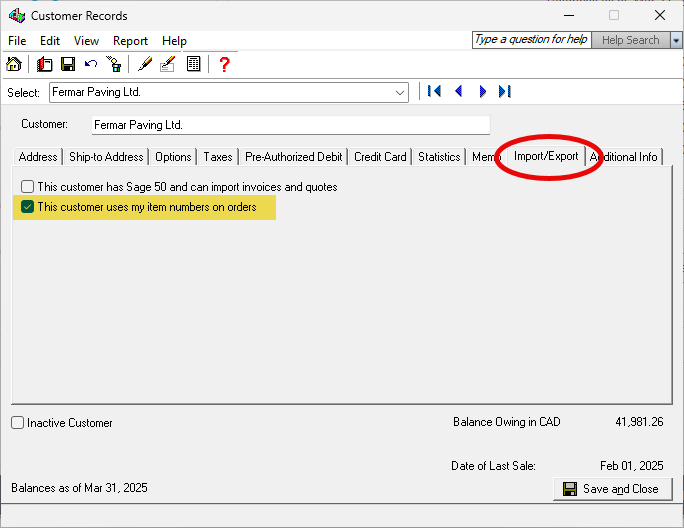
You can override that behavior by modifying your Customer Records to tell Sage that your Customers use your Item numbers.
Again, we recommended that you click Cancel, modify the Customer or Customers and then restart the Import Transactions Wizard.
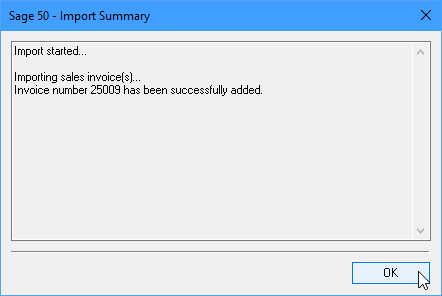
Once the import is complete, Sage will let you know how many Invoices it imported. Click OK.
If errors occur, Sage will tell you that there were errors. It's not very helpful explaining what has gone wrong. In our experience, when the file is formatted correctly (which it is) the only errors you should see will refer to duplicate invoice numbers or incorrect tax code assignments.
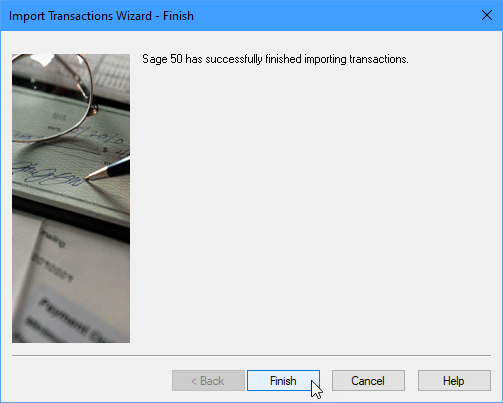
Once again, Sage requires you to click Finish to close the Import Transactions Wizard.