Configuring client access to the server
You must specify the networks or client IP addresses that are allowed to access a PostgreSQL server using the pg_hba.conf configuration file. When the server is running on a Windows machine, the configuration file is normally located in the server installation data folder.
As an example, for PostgreSQL 18 the file is located here:
C:\Program Files\PostgreSQL\18\data
Example
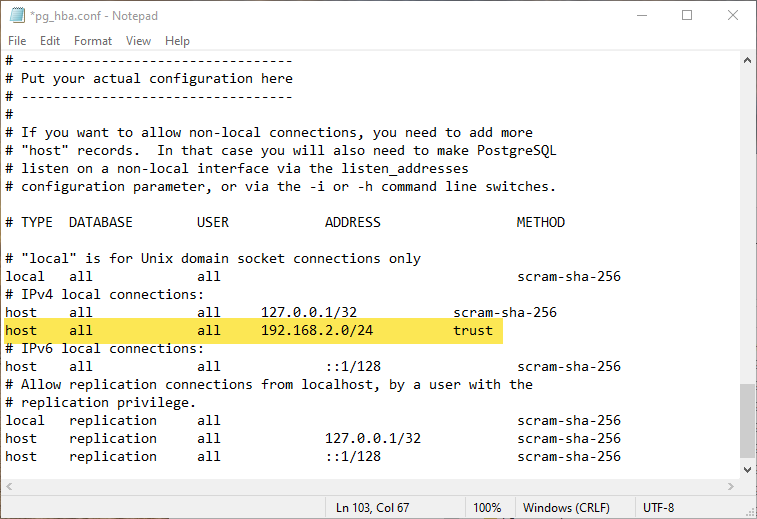
Allow all clients on the 192.168.2 network to access any database on a server we need to add:
host all all 192.168.2.0/24 trust
The trust keyword indicates user names must be valid but password checking is not enforced. Use scram-sha-256 to enforce password checking.
Notepad can be used the open and edit pg_hba.conf. The area that needs to modified is near the bottom of the file. The line that we added is highlighted.
Please refer to the official documentation for more information.
https://www.postgresql.org/docs/current/auth-pg-hba-conf.html
Firewall configuration
Port 5432 must be open on the machine that is running the PostgreSQL server.
You can test client connection to the server by temporarily turning off the firewall on the server.
Testing for an open port
You cannot use ping to determine if a port is open on the machine that your server is running on. You can test if the machine that is running your server can be reached via TCP over a specific port using the following Windows PowerShell command:
tnc 192.168.7.128 -port 5432
Extensions
Dispatch requires the uuid-ossp extension.
Each time Dispatch connects to a PostgreSQL database, it will automatically try to create the extension by executing the following statement:
CREATE EXTENSION IF NOT EXISTS "uuid-ossp"