The SQL Anywhere personal or network database server that can be run as a service on Windows computer.
Advantages of services
Running the database server as a Windows service enables it to run without having to log on to the computer. This is especially useful when the database server is going to be accessed by multiple clients on a network.
Creating a service
A command line utility, dbsvc, is provided to simplify the creation of services. You must be a member of the Administrators group on the machine when you run dbsvc to create a database service.
To open the Command Prompt utility, click Start and scroll down to the Windows System group. Click Windows System and then right-click Command Prompt. Click More and the Run as administrator.

Examples
The following examples are applicable to Windows 10 (database files are located in ProgramData folder). You can copy and paste the examples into Command Prompt.
The examples all create a service named Dispatch1Service that start a database server name Dispatch1_Server (the -n option names the database server).
Personal server
Create a personal server service named Dispatch1Service which starts the specified engine with the specified parameters. The engine runs as the LocalSystem user:
32-bit Windows
dbsvc -as -i -s auto -w Dispatch1Service "C:\Program Files\Sybase\SQL Anywhere 8\win32\dbeng8.exe" -n Dispatch1_Server -c 8m "C:\Users\Public\Documents\CanScale\Dispatch 3.2\Adaptive Server Anywhere 8.0\Dispatch.db"
64-bit Windows
dbsvc -as -i -s auto -w Dispatch1Service "C:\Program Files (x86)\Sybase\SQL Anywhere 8\win32\dbeng8.exe" -n Dispatch1_Server -c 8m "C:\Users\Public\Documents\CanScale\Dispatch 3.2\Adaptive Server Anywhere 8.0\Dispatch.db"
Network server
Create a network server service named Dispatch1Service. The server runs under the local account, and starts automatically when the machine is booted:
32-bit Windows
dbsvc -as -i -s auto -t network -w Dispatch1Service "C:\Program Files\Sybase\SQL Anywhere 8\win32\dbsrv8.exe" -n Dispatch1_Server -x tcpip -c 8m "C:\Users\Public\Documents\CanScale\Dispatch 3.2\Adaptive Server Anywhere 8.0\Dispatch.db"
64-bit Windows
dbsvc -as -i -s auto -t network -w Dispatch1Service "C:\Program Files (x86)\Sybase\SQL Anywhere 8\win32\dbsrv8.exe" -n Dispatch1_Server -x tcpip -c 8m "C:\Users\Public\Documents\CanScale\Dispatch 3.2\Adaptive Server Anywhere 8.0\Dispatch.db"
Display service details
dbsvc -g Dispatch1Service
Delete a service
dbsvc -y -d Dispatch1Service
Example command output
Here's what you should see if you run the examples:

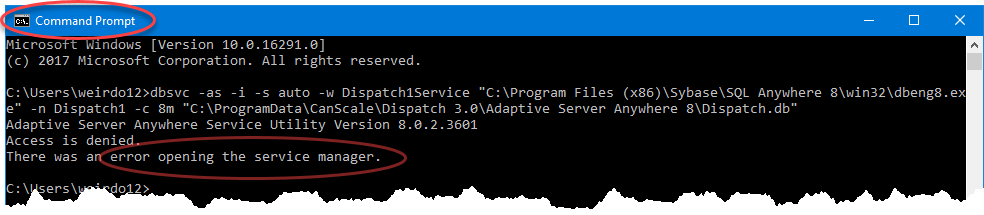
As illustrated in the example below, the Command Prompt utility must be run by an Administrator (Run as administrator) or the dbsvc utility will not work correctly.
Is my service running?
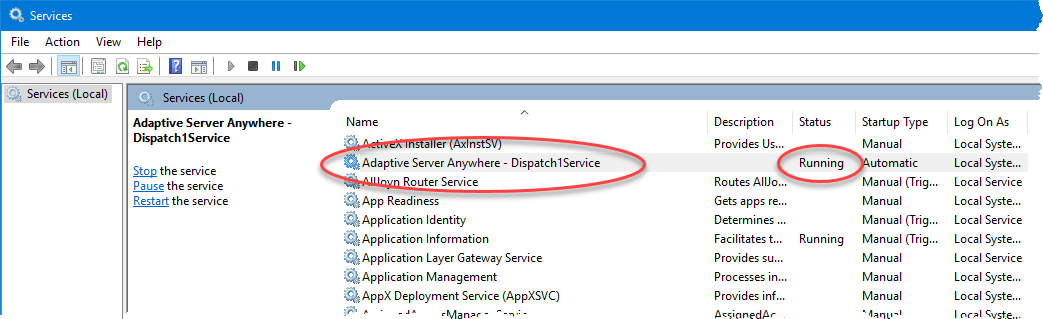
Normally the service would be created to start automatically when Windows starts. To verify that your service is running correctly, reboot your computer (the service starts when Windows restarts). Now, open the Services desktop application (Start>Windows Administrative Tools>Services). The services names are sorted alphabetically so the database server service will be near the top and should be easy to locate.
Utilities
List all details about service Dispatch1Service:
dbsvc -g Dispatch1Service
Delete the service called Dispatch1Service, without prompting for confirmation:
dbsvc -y -d Dispatch1Service
Command syntax
dbsvc [ options ] <svc>
dbsvc [-q] [-y] -d <svc>
dbsvc [-q] -g <svc>
dbsvc [-q] -l
dbsvc [-q] [-y] <creation options> -w <svc> <details>
Exit codes are 0 (success) or non-zero (failure).
Service creation utility (dbsvc) options
Option |
Description |
||||||
Account name (-a) |
All services run under a Windows account. If you run under an account you've created, you must name the account with the -a option and supply a password with the -p option. |
||||||
Use local system account (-as) |
All services run under a Windows account. Using the -as option, the service will run under a Windows account. No password is required. |
||||||
Delete a service (-d) |
Removes the server name from the list of services. If you supply -y, any service is deleted without confirmation. |
||||||
|
|
||||||
Allow service to interact with desktop (-i) |
Displays an icon that you can double-click to display the server window. |
||||||
Get details of a service (-g) |
Lists the definition of the service, not including the password. |
||||||
Allow service to interact with desktop (-i) |
Displays an icon that you can double-click to display the server window. |
||||||
List all Adaptive Server Anywhere services (-l) |
Lists the definition of the service, not including the password. |
||||||
Password for account (-p) |
Use this option with the -a option to specify the password for the account the service runs under. |
||||||
Do not print banner (-q) |
Suppress the informational banner. The -q option can be used with any of the -d, -g, -l, or -w options. |
||||||
Set group dependencies (-rg) |
At least one service from each of the groups in the list must be started before the service being created is allowed to start. |
||||||
Startup option (-s) |
Sets startup behavior for Adaptive Server Anywhere services. You can set startup behavior to Automatic, Manual, or Disabled. |
||||||
Type of service (-t type) |
Specifies the executable to run for this service. You can choose from the following types:
The default setting is Standalone. If creating a service, you must specify options for the appropriate executable along with the type. |
||||||
Create service (-w) |
Creates a new service, or overwrites one if one of the same name exists. If you supply -y, any existing service is overwritten without confirmation.
You must supply the full path to the executable that you wish to use as a service, as the account under which the service is running may not have the appropriate SQL Anywhere directory in its path. |
||||||
Delete or overwrite service without confirmation (-y) |
Automatically carries out the action without prompting for confirmation. This option can be used with the -w or -d options. |